
Overview
This support article describes how to update your incoming and outgoing hostname email settings on an iPhone.
Instructions
- Open the Settings App.
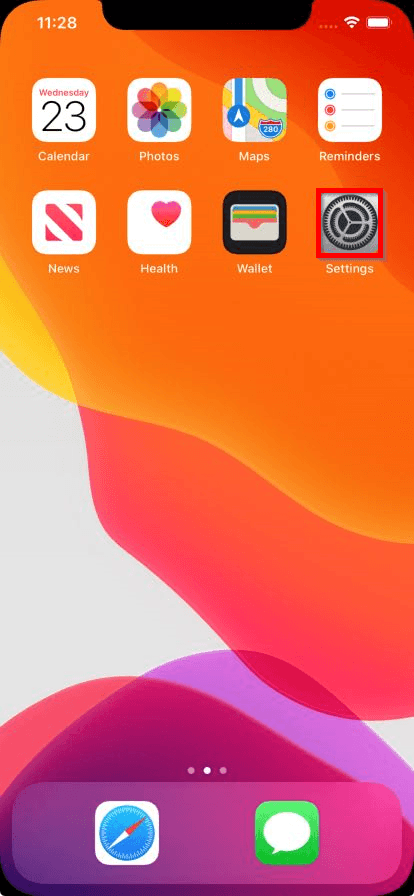
- Go to the Mail setting.

- Select Accounts.
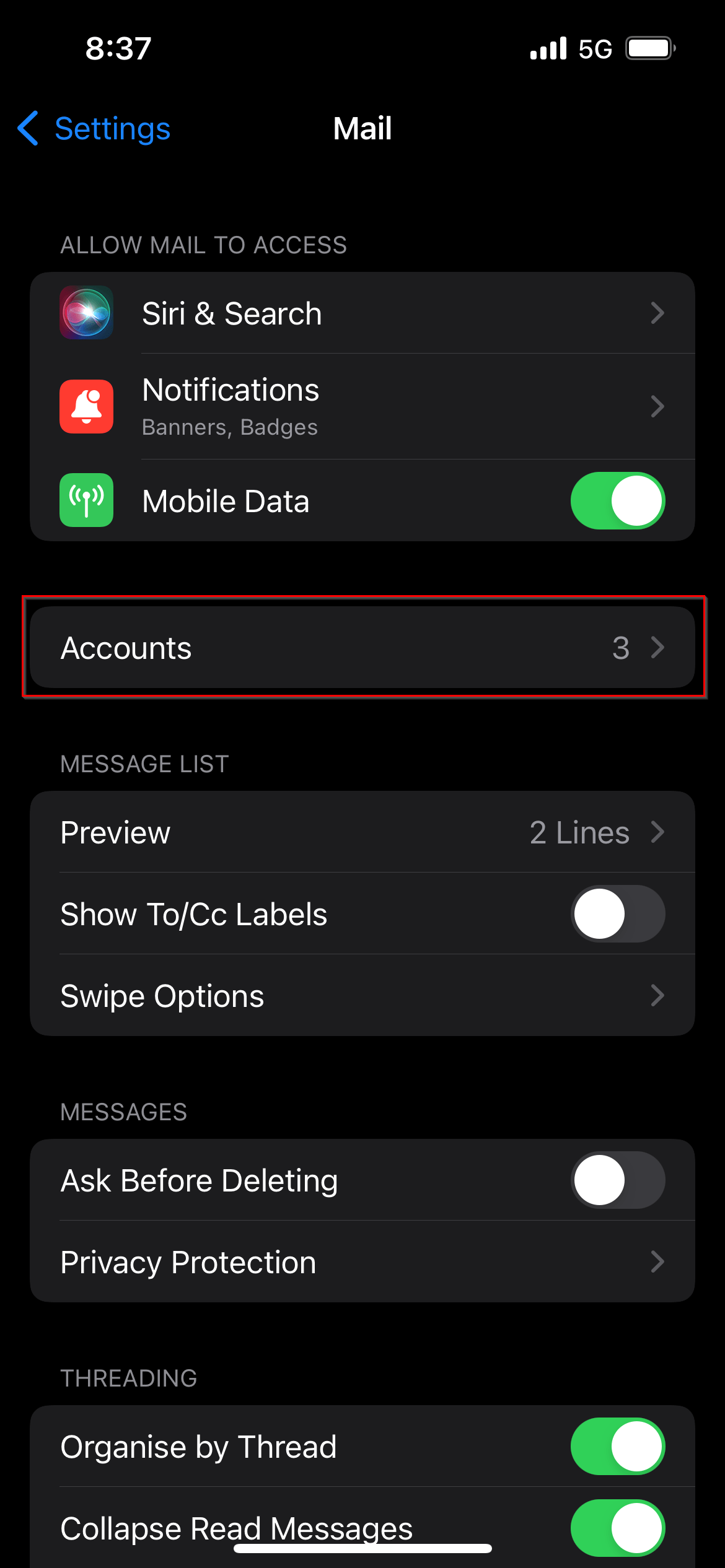
- Select your existing mailbox.
a. In this Example, it is Your email address
- Select Account under IMAP or POP.
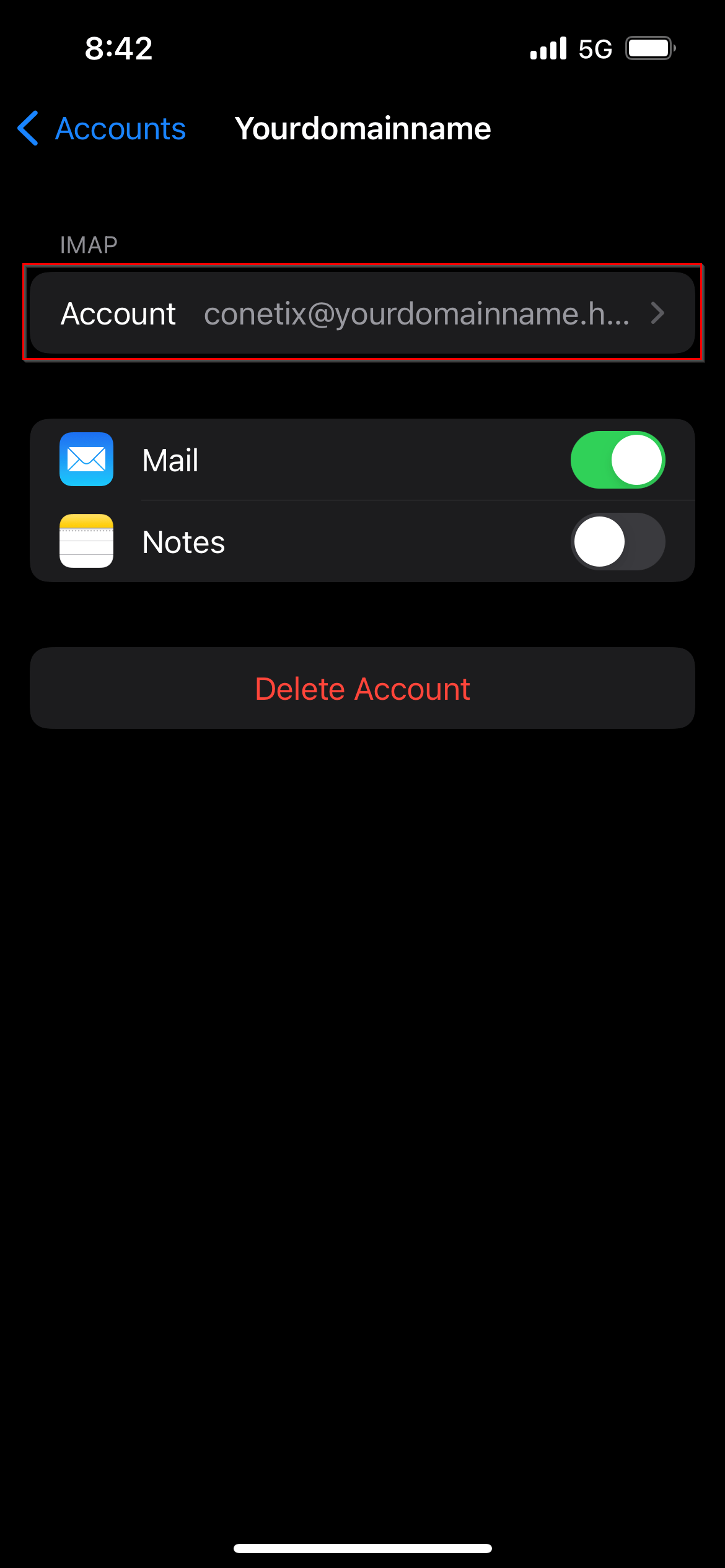
- Enter the new Hostname in Incoming Mail Server.
- Select SMTP under Outgoing Mail Server.

- Select your outgoing server under Primary Server.
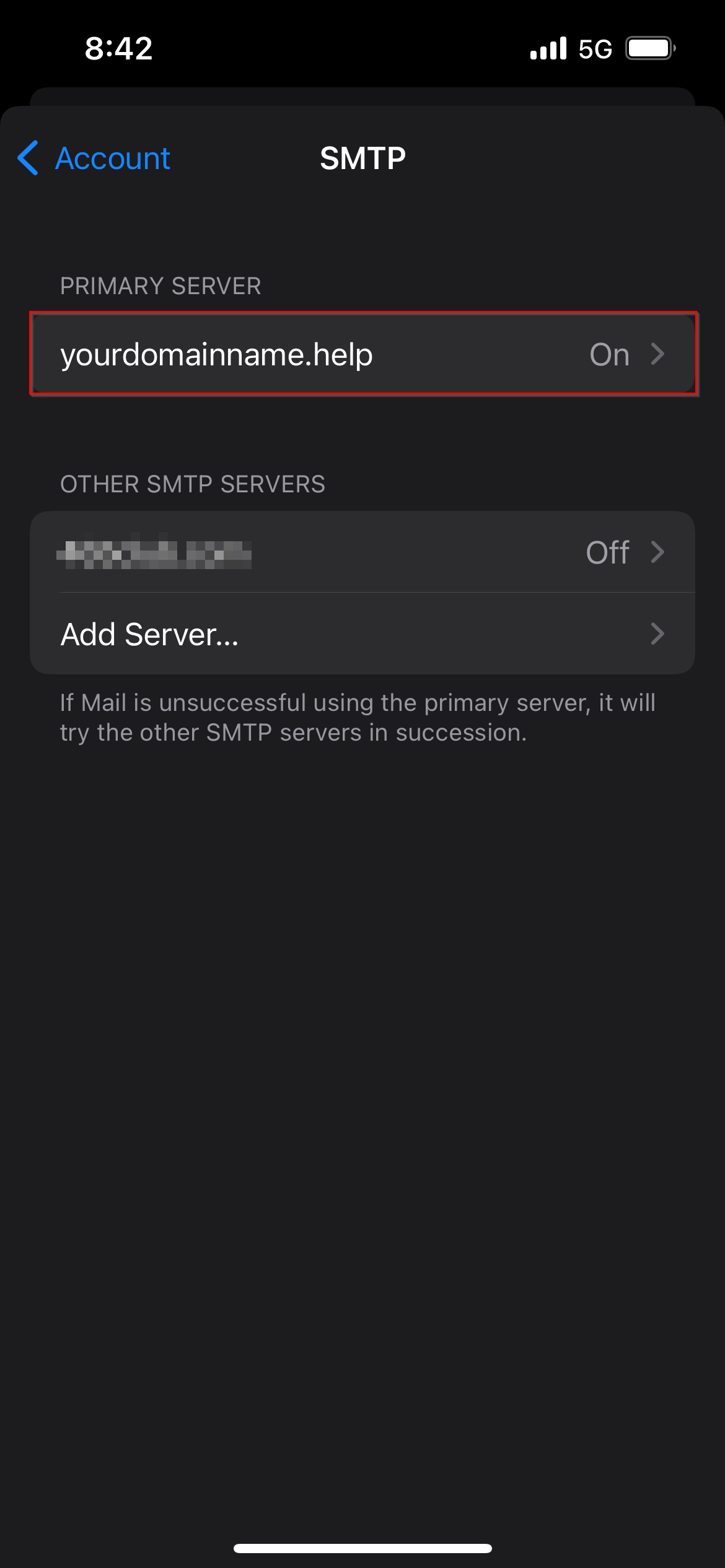
- Enter the new Hostname.
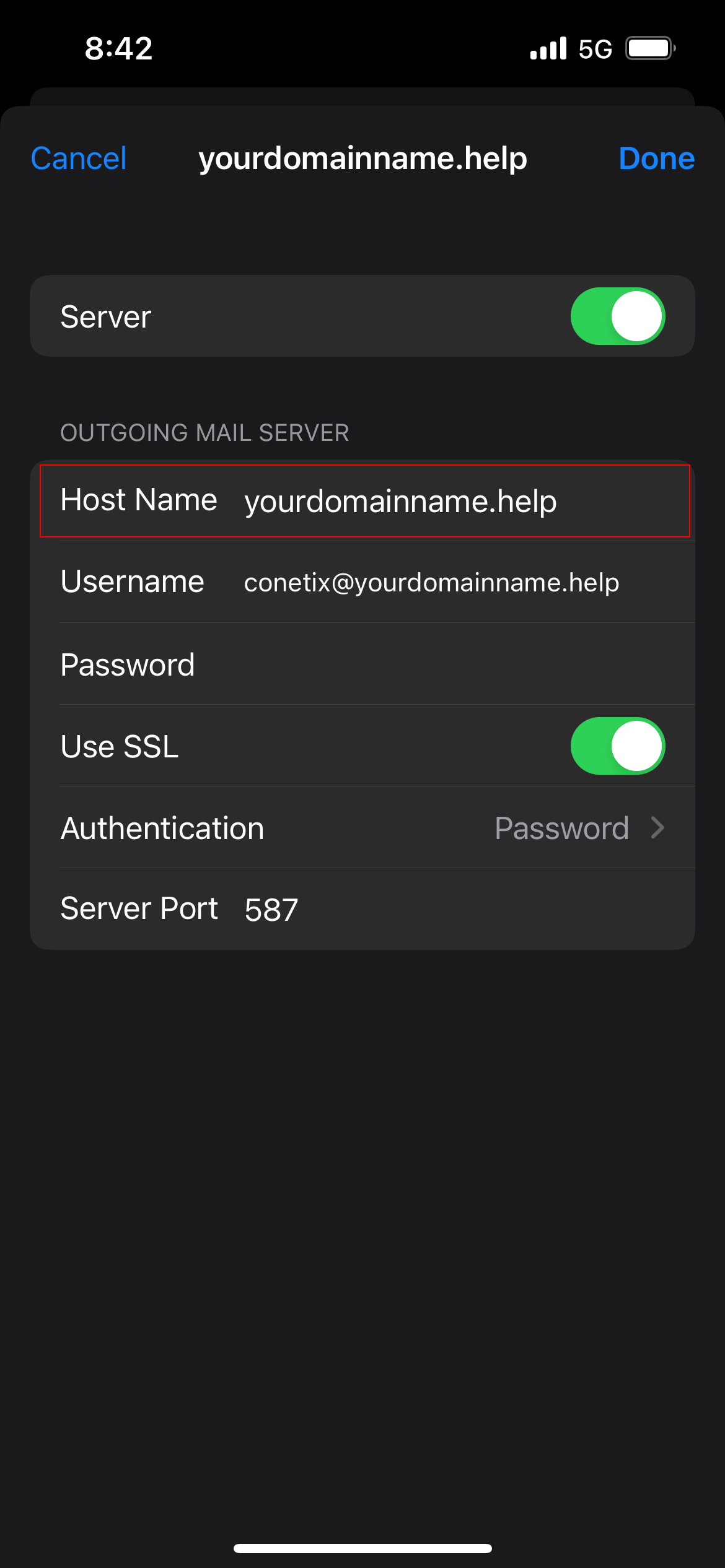
- Press Done to verify the new credentials in Outgoing.
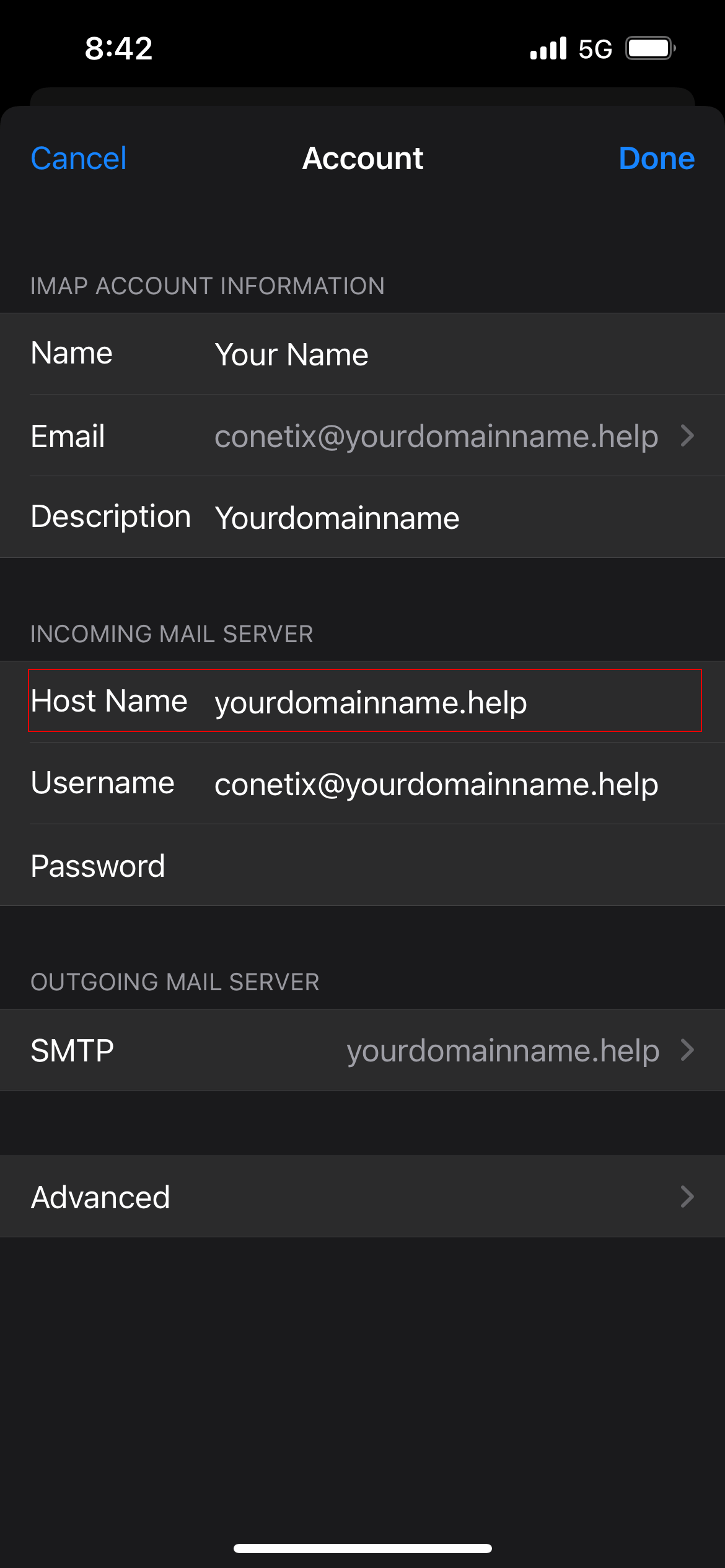
- Back in the Incoming settings, press Done again to finish verification.