Overview
This article will detail the process of setting up your emails in the Apple Mail App on an iPhone.
Instructions
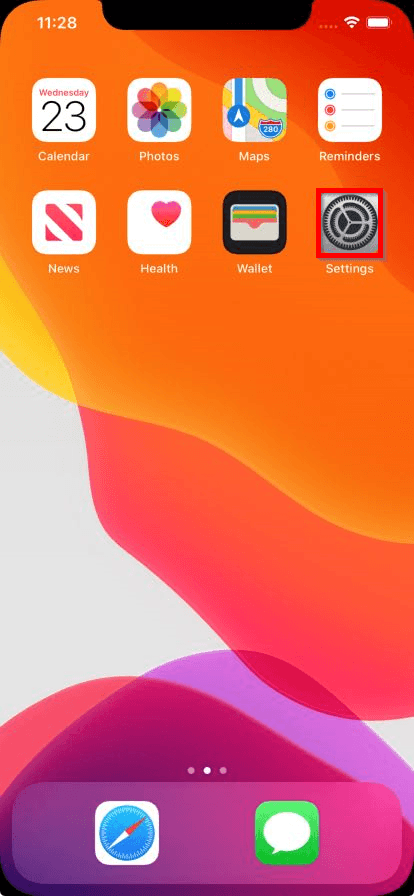
1. Open the Settings App.
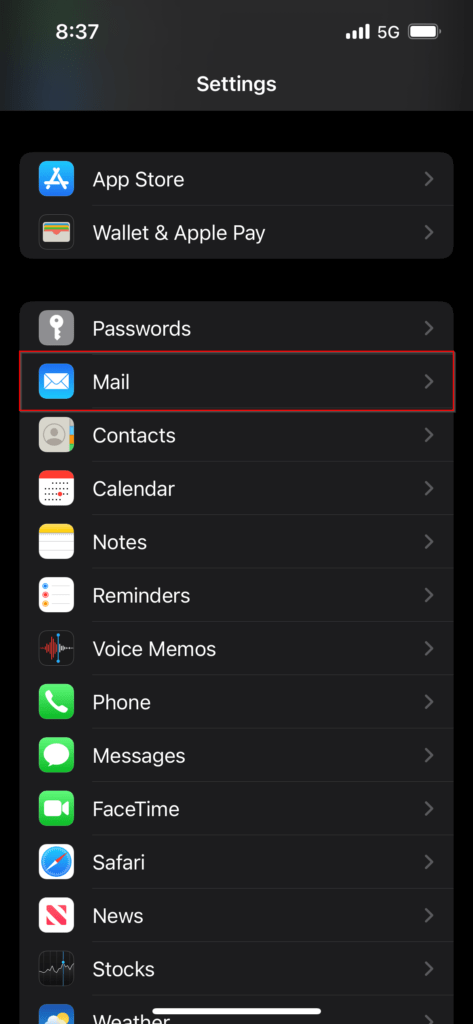
2. Go to the Mail setting.
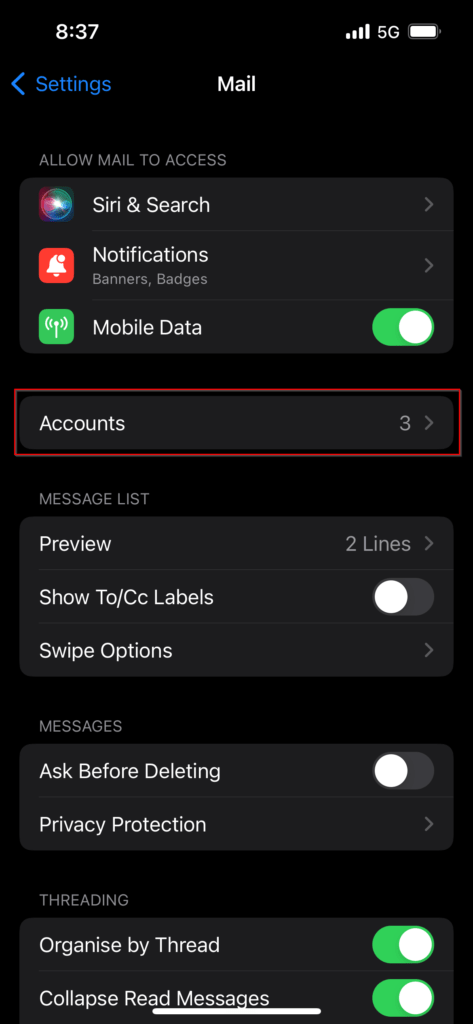
3. Select Accounts.
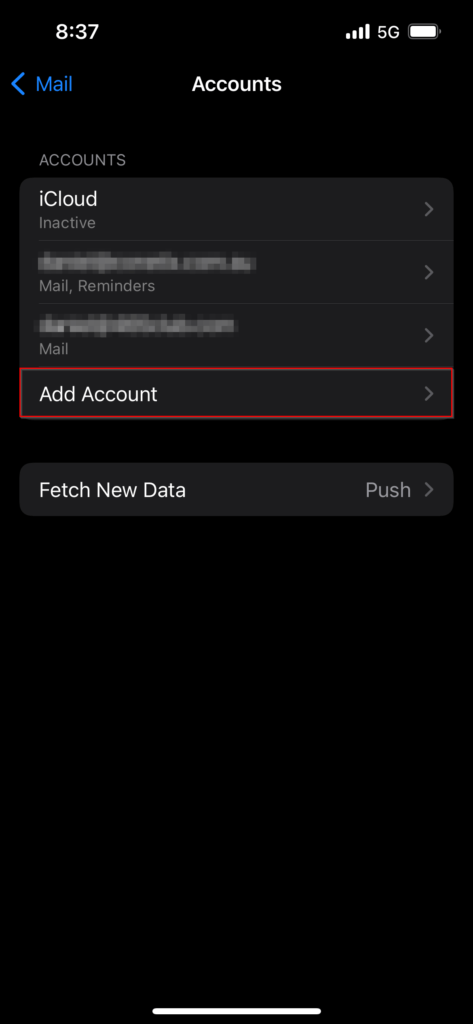
4. Select Add Account.
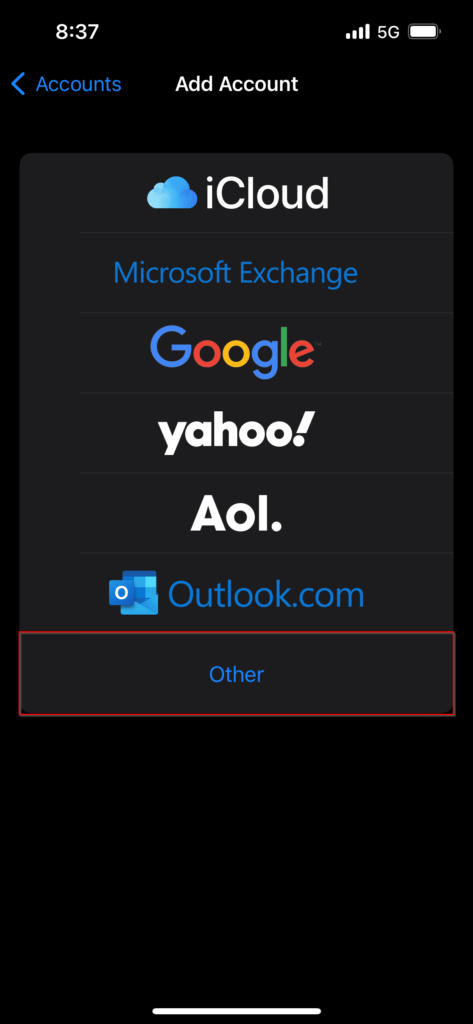
5. Select Other.
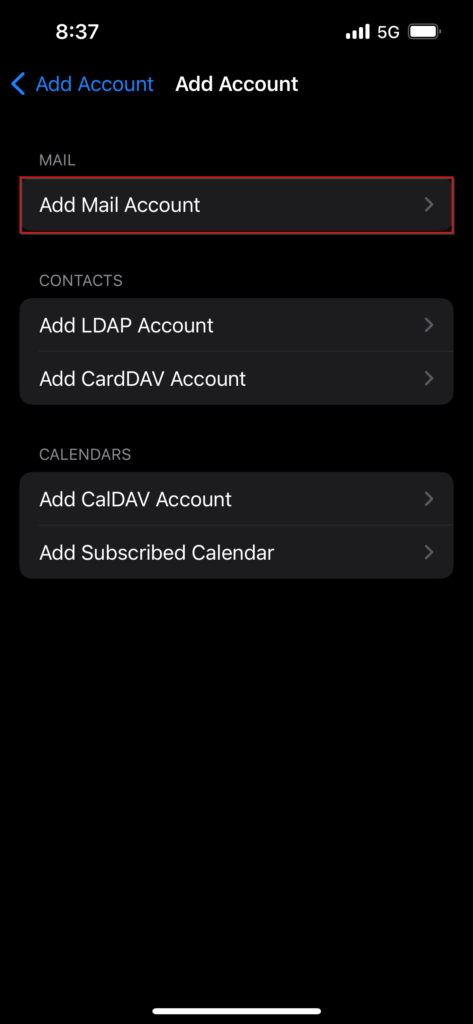
6. Select Add Mail Account.
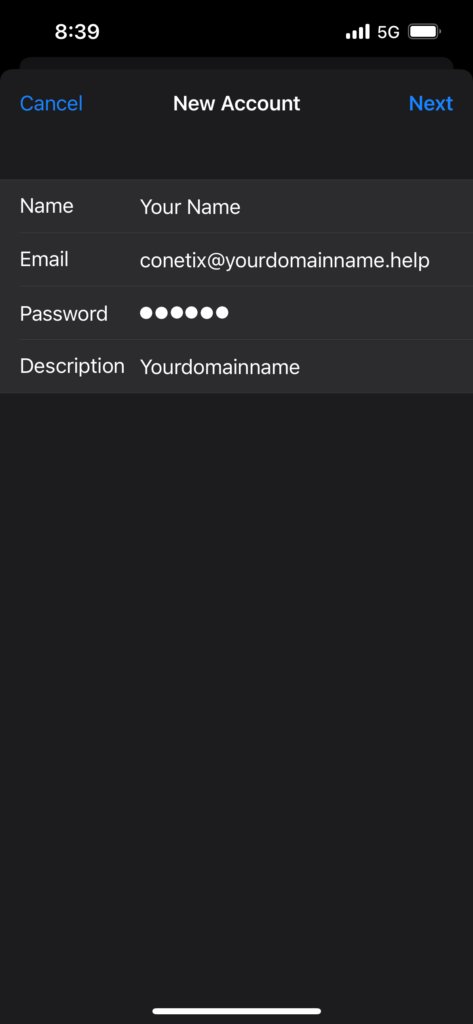
7. Select IMAP, enter your name, email, password, and a description for the email.
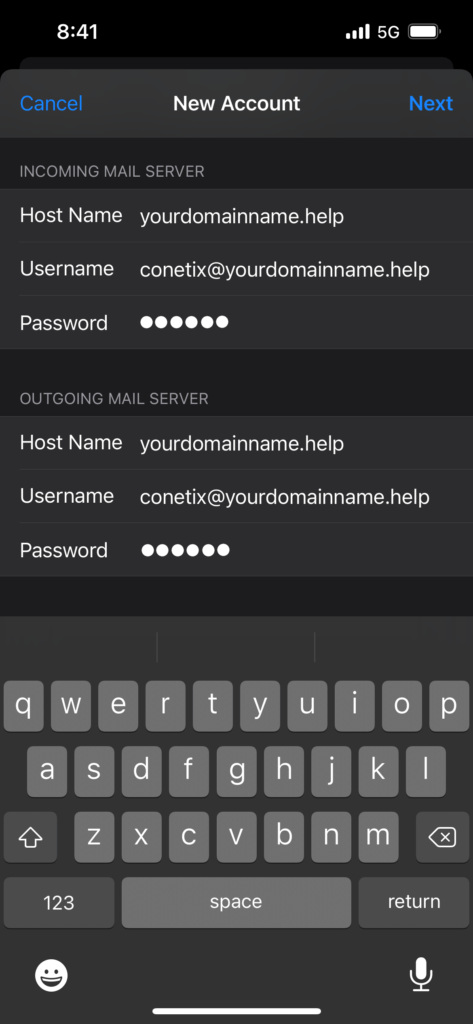
8. Enter the Incoming and Outgoing Mail Server Hostname and enter your Email Address and Password.
Note that the below screenshot contains generic examples of settings – please ensure you instead enter the correct settings for your own email account.
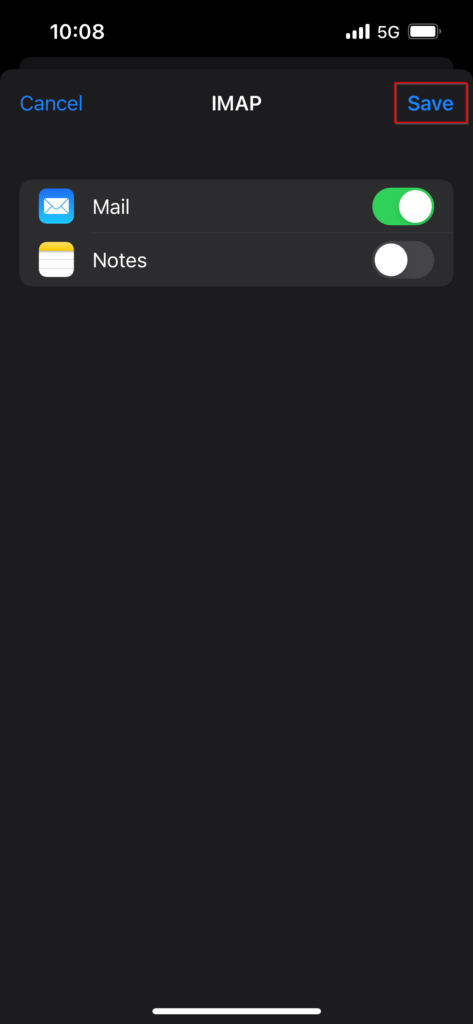
9. You will then be asked if you would like to associate other services with the email. When ready to continue, select Save.