
Overview
All Microsoft 365 accounts have Multi-Factor Authentication (MFA) enabled by default as a method to increase your email security and protect against unauthorised account access. This article will guide you through the process of getting your MFA codes to your mobile number.
Instructions
- Log in to your Microsoft 365 account at the following URL: https://mysignins.microsoft.com/security-info
(If prompted whether to sign in using a “Personal” or a “Work/School” account, select the “Work/School” option to sign in with your Conetix supplied account).
- Click the Add method button:

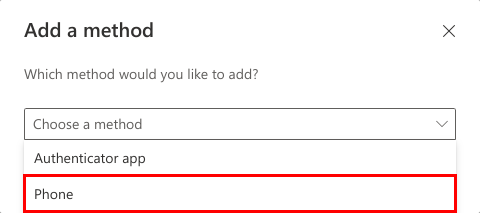
- Select Phone as your method:
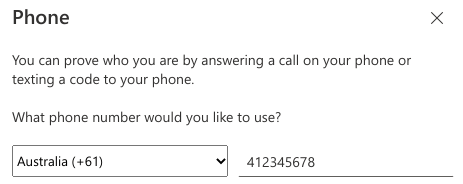
- Enter the mobile number you would like to recieve MFA codes:
- Click Next:

- A 6 digit code will be sent to the mobile number you entered containing the following text:
Use verification code 123456 for Microsoft Authentication. - Enter the 6 digit code into the Enter code box in your web browser:

- Click Add:

- You will see a message showing your phone was added successfully:

- Click Done to finish.
Your device(s) will ask you for a new 6 digit code in the next 30 minutes. You’ll also be asked for a new 6 digit code when you try to sign in to your account on a new device.