
Overview
This article will guide you through setting up an email forward in Microsoft 365.
Forwarding can be used when staff members are on holiday or an email address is no longer actively used but may still receive emails.
Instructions
- Open a Web Browser and navigate to outlook.office.com and Sign In.
- Click the Settings Cog in the top right as shown below:

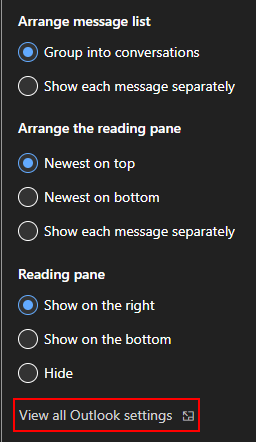
- In the pane on the bottom right, select View all Outlook settings:
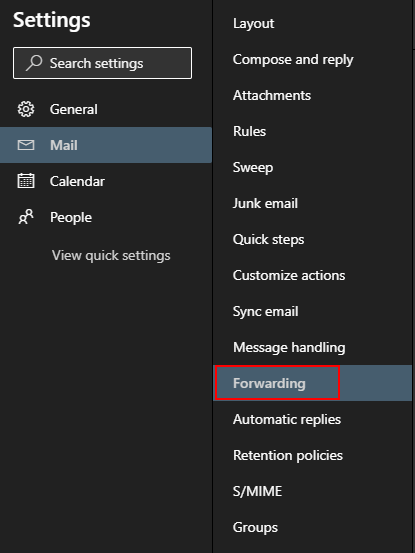
- After the Settings Window is open, select Mail on the left-hand side, then select Forwarding:
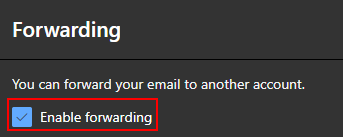
- Tick the box for Enable forwarding:
- In the avaliable box under Forward my email to: enter the email address you want to forward emails to:

- If the forward is going to be temporary you will want to enable the option Keep a copy of forwarded messages:

- Once all of the details have been filled out and enabled, click save in the bottom right.
You have successfully set up an email forward through Microsoft 365.