
Overview
Clients using Acronis Cloud can follow this article to restore files to their Virtual Servers.
Instructions
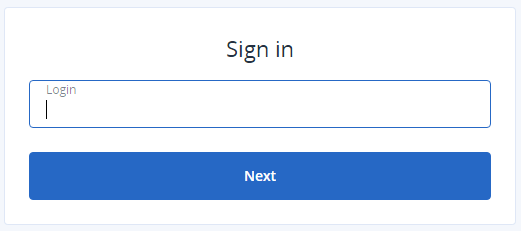
- Login to the Acronis Portal
- Click Devices:

- Find your virtual machine and click Recover:

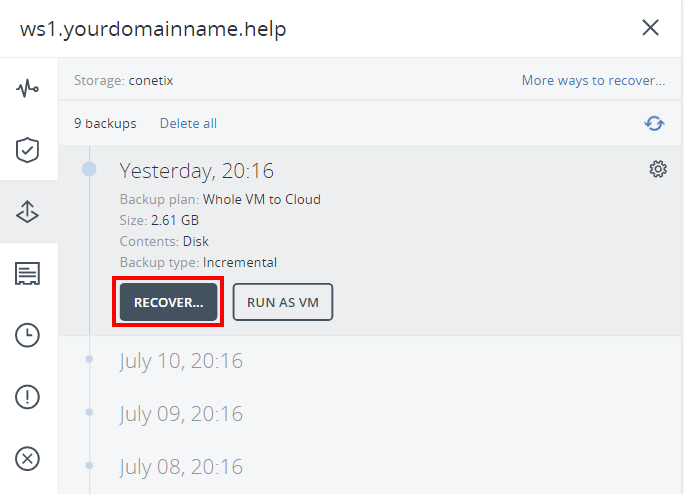
- In the slide out window, select “Recover…” under the date you’d like to restore to:
- To recover individual files and folders, click “Files/folders” from the dropdown menu:

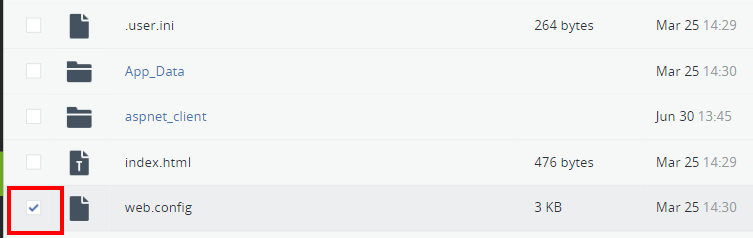
- In the new Window, use the web portal file navigation to find the folder or files you need to restore:

- Select the tick box next to the file(s) or folder(s) you’d like to restore:
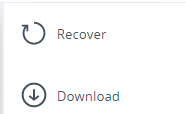
- To restore the file, click “Recover”. To download the file, click “Download”.
- Once the download or recovery action is complete, your file will either download or be recovered to the server.