
Overview
Acronis Backup Cloud offers Microsoft 365 as a backup source. This is useful if you’d like to backup your Microsoft 365 mailboxes automatically, allowing quick restoration of emails if ever needed.
Prerequisites
- Global Administrator Rights for Microsoft 365
- Microsoft 365 Acronis Seats
Instructions
- Log into your or your customers Acronis Account:
https://au1-cloud.acronis.com/
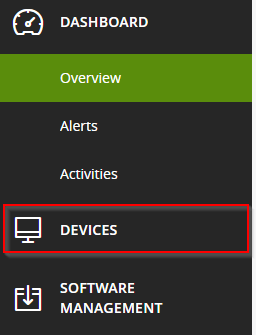
- Click Devices:
- Next click Add:
- Click Microsoft 365 Business:

- You will be redirected to the Microsoft sign in page, enter you Global Administrator username and click Next:

- Enter your Global Administrator Password and Click Sign In:

- Accept the requested permissions by Microsoft 365:

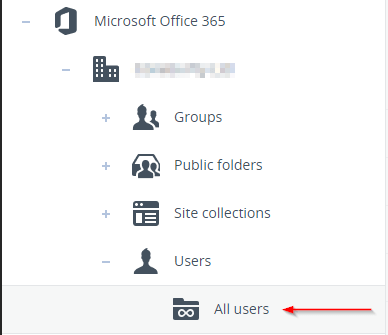
- You will be redirected back to the Acronis Management console, you can now drill down to All users:
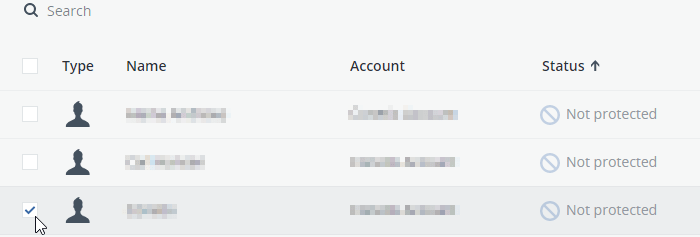
- Select the users you are wanting to back up:
- Click Backup:

- Configure how long you would like to retain the backups:

- Click Apply to save your backup plan:

If you need assistance with this process, please reach out to our support team for assistance.