
Overview
This article will guide you through the setup of Automatic Replies through Microsoft 365. Automatic Replies can be used for things such as:
- Out-of-office responses while staff are on holidays
- Instant reply with marketing material or support documents
- Confirmation that the email has been received
For example, you could have an auto-reply confirming that a customer’s order has been received or an out-of-office response while you’re on Christmas holidays.
Instructions
- Open a Web Browser and navigate to outlook.office.com and Sign In.
- Select the Settings Cog in the top right as shown below:

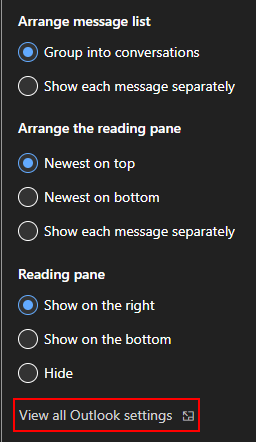
- In the pane on the bottom right, select View all Outlook settings:
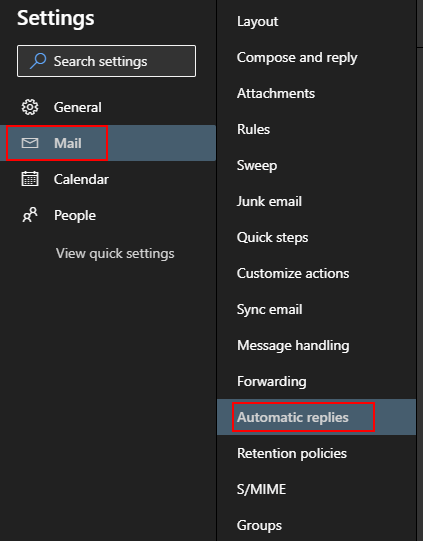
- After the Settings Window is open, select Mail on the left-hand side, then select Automatic replies:
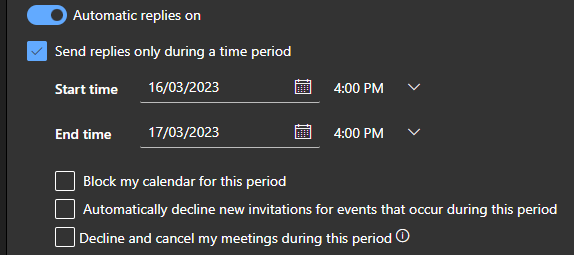
- Enable automatic replies and if needed enter a duration you wish the auto-responder to remain for:
- Enter your message, then select Save:
In order to send emails outside your organisation you will need to enable Send replies outside your organization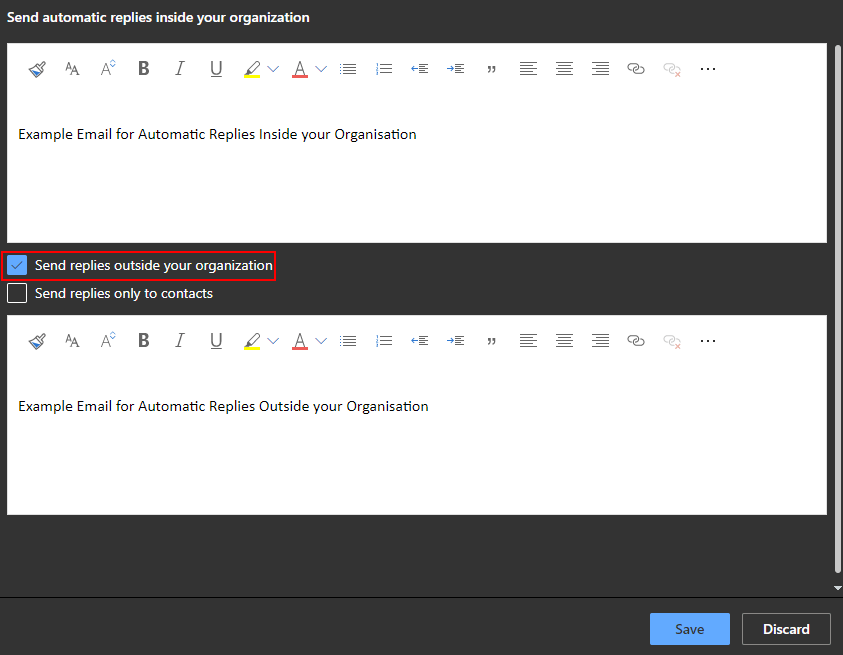
You have successfully set up an automatic reply through Microsoft 365.