
Overview
This article describes how to change permissions on files and/or folders in Plesk Windows. You may need to do this if you have migrated your website to Conetix or your web application needs to write to a file or folder it does not have access to.
Instructions
- Login to Plesk via your Conetix Control Panel or directly to your VPS directly.
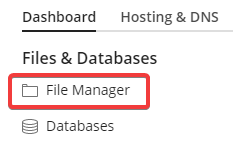
- Open the File Manager for the domain you’re working on:
- In the file manager, click on the hamburger menu for the file or folder you’re changing and then click Change Permissions:

- Click on the appropriate User from left
e.g. (IWPG_yourpleskuser)
- Adjust the permissions as required on the right:

- When your changes are made click Save:

- Once saved reload site to confirm your site or application is now working as expected.