
Overview
Sometimes you only need to restore a few files from your Plesk backup instead of the entire subscription. This article guides you through restoring individual files from a Plesk backup.
This is different to restoring an entire domain which you can find a guide for below:https://testing.conetix.com.au/support/plesk-obsidian-restoring-from-backup/
Instructions
- Login to your subscription or VPS.
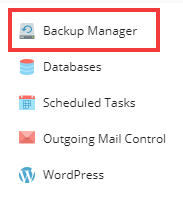
- Click the Backup Manager on the far right hand side:
Information
VPS customers performing full server backups should navigate to Tools & Settings > Backup Manager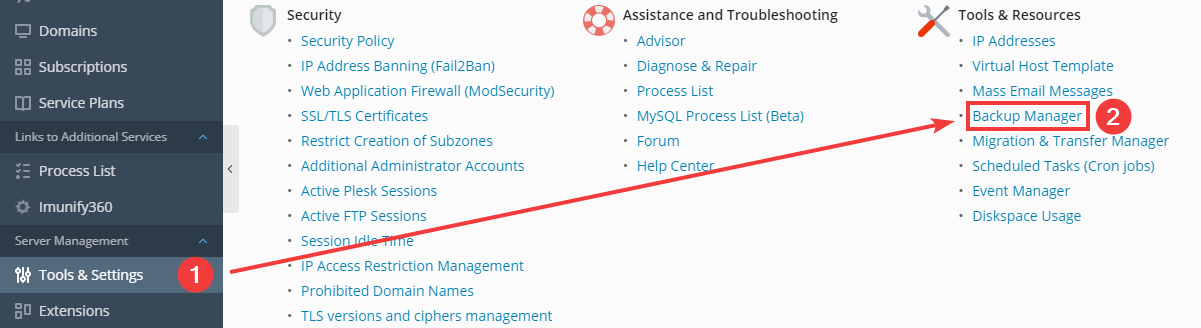
- Select a backup that contained the last good copy of the files you need to restore:

- Tick Restore the backup file despite a corrupted signature:

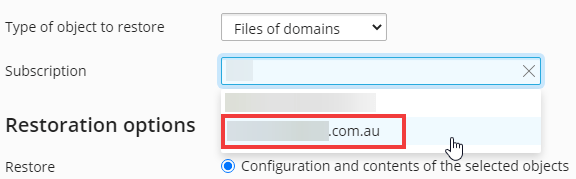
- Under Backup content select Files of Domains from the Type of object to restore drop down:

- Type the domain in the search box then select the domain once it is visible:
- Click Add Files:

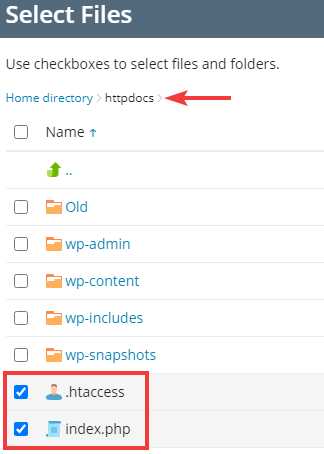
- Navigate to the folder containing the files and/or folders you want to restore and tick the checkboxes to the left of the items:
- Click OK:

- Plesk will now restore the selected files over the existing files on the server.
If you have questions or need assistance regarding restoring files please contact our friendly support team.