
Overview
This article serves to guide affiliate customers through migrating websites or customer websites to their VPS with Conetix via the Plesk Site Importer.
Instructions
- Login to your VPS
- On the Left Click Subscriptions
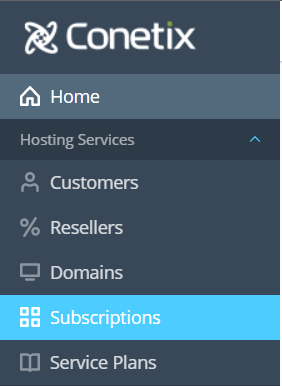
- Using the search box on the right look for, then click the desired domain to access the subscription

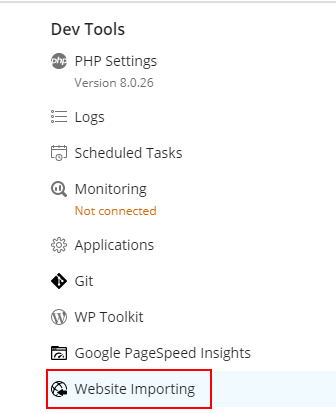
- Click Website Importing under Dev Tools
- At the top click Switch to advanced mode

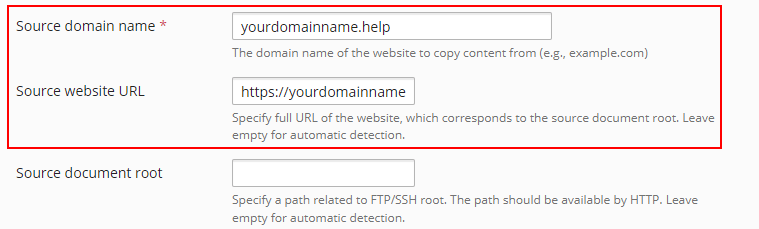
- Enter the Source domain name and website URL
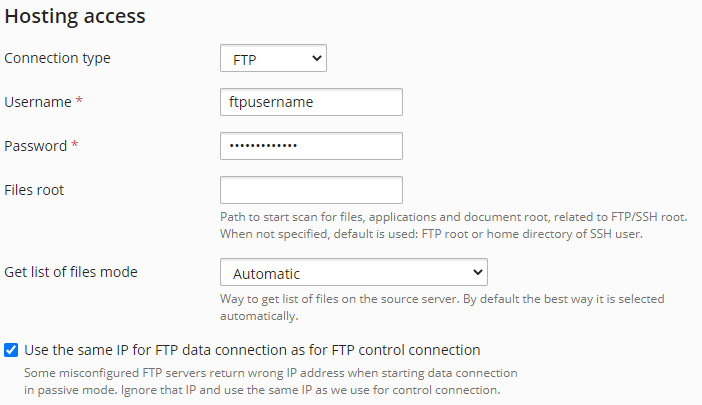
- Hosting Access – Here you will enter the FTP details to migrate the site
- Set the Connection type to FTP
- Enter in the FTP Username and password.
- Files root, Get list of files mode and Use the same IP for FTP data connection as for FTP control connection can be left as is.
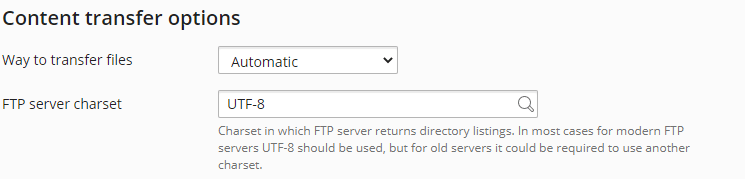
- The Settings under Content Transfer options can be left as is.
- Click OK and Plesk will search for content to import on the source server
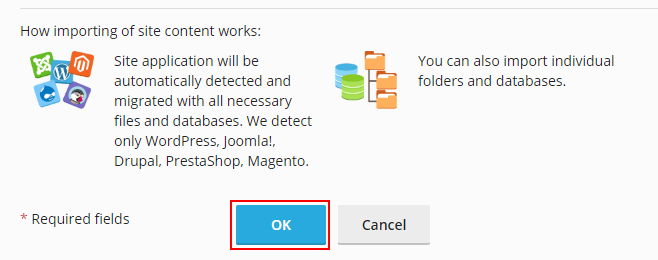
- The site importer will begin connecting to the source server and scan for any sites in the hosting

If you run into any issues double check your FTP details.
- Next you can begin importing the site.
- importing a WordPress Site
- Tick the box to the left of the source installation path
- Then click Import
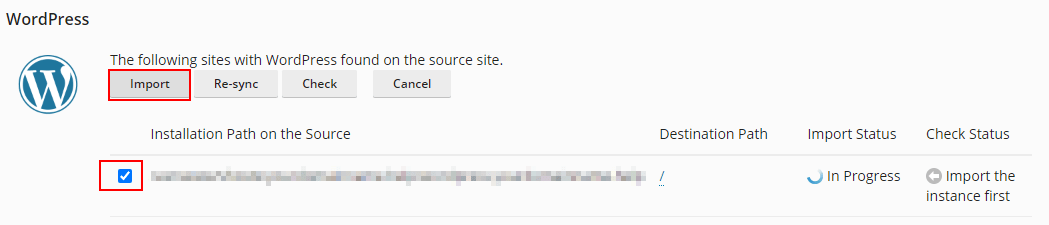
- importing a WordPress Site
- Once the import completes, run a check on the imported site
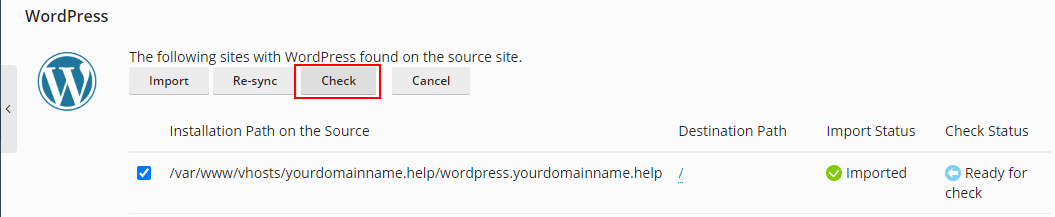
- Once the check is completed the site has been imported into Plesk, you will want to take a look at the site yourself to visually confirm it is all good
If you’re unsure about any of the above steps please contact our friendly support team.