
Overview
This article shows you how to use the mass plugin action function within the WordPress Toolkit. WordPress ToolKit allows you bulk to install, activate and deactivate, uninstall, and update all your plugins across your WordPress sites.
Instructions
- Login to your subscription or VPS.
- Click WordPress on the far-left side:

- This will take you to the WordPress Toolkit page here you can view all your WordPress websites.

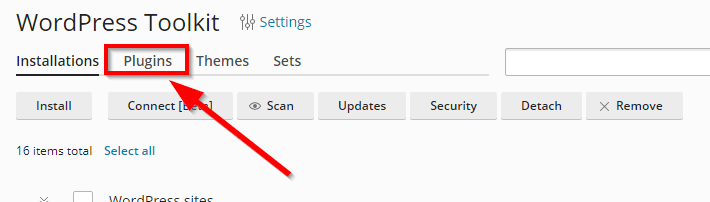
- Click Plugins.
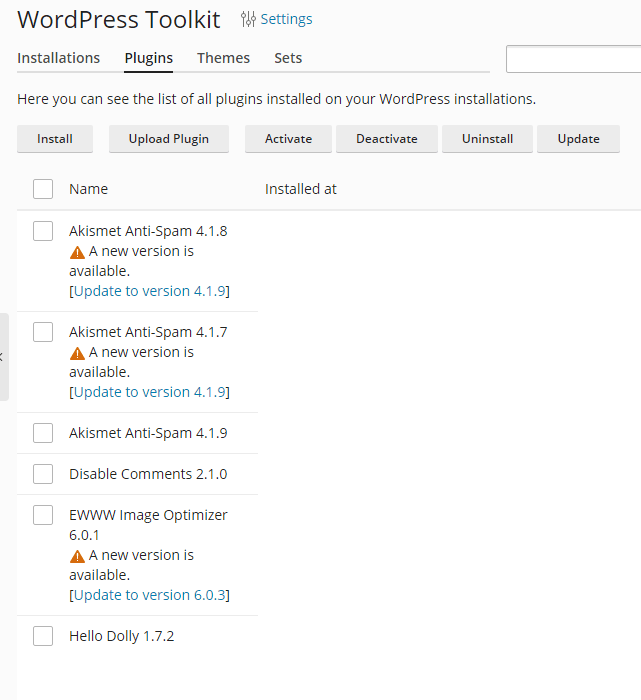
- Here you can see the list of all plugins installed on your WordPress installations
 .
.
Install Plugins in WordPress Toolkit
- To install new plugins click Install

- Type the plugin in the search box then select the plugin once it is visible.
- By clicking on Name, you can select all the available plugins from the search.
- Click the box to select which plugins you would like to install.
- Click Select websites

- Click Name to apply to all WordPress websites in your account.
- To select specific websites, click the box adjacent to them.
- When you have selected the sites, you wish to install plugins to click Install

- Now the plugins will be installed this could take up to 5 minutes .


- Once the plugins have been installed, they will need to be activated.
Uploading a Plugin
- To upload plugins from your local computer click Upload Plugin.

- Once you have uploaded your .zip file click OK


Activate Plugins
- To select all plugins, click the box adjacent to Name
- To select individual plugins, click the box’s adjacent to them.
- Then click Activate
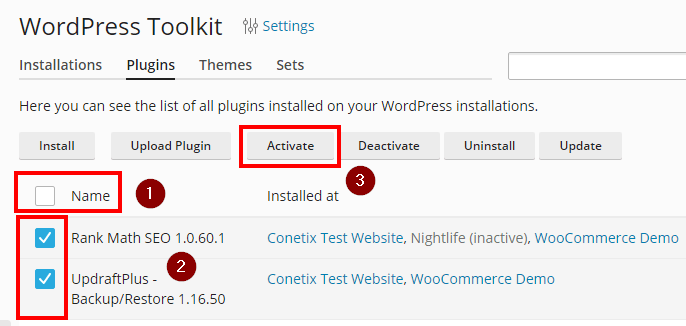
- This will activate the selected plugins (Active plugins will show highlighted in blue)



Deactivating Plugins
- To select all plugins, click the box adjacent to Name
- To select individual plugins, click the box’s adjacent to them.
- Then click Deactivate

- This will deactivate the selected plugins (Deactivated plugins will show as grey)



Uninstalling Plugins
- To select all plugins, click the box adjacent to Name
- To select individual plugins, click the box’s adjacent to them.
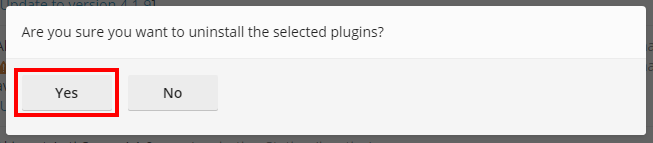
- Then click Uninstall

- Click Yes
Updating Plugins
- To select all plugins, click the box adjacent to Name
- To select individual plugins, click the box’s adjacent to them.
- Then click Update
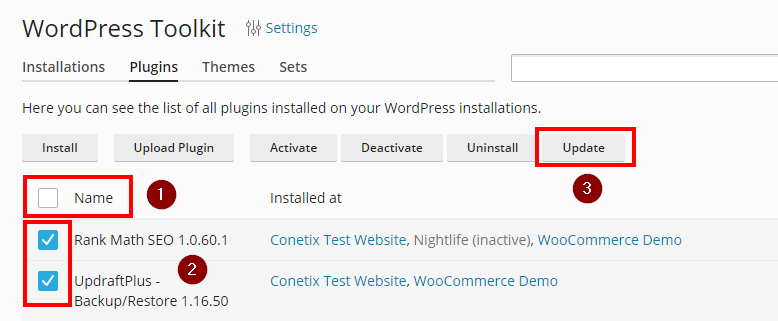


- Once the plugin has finished updating please check your website to ensure no errors have occurred.
If you are unsure on any of the above, please contact our friendly support team!