
Overview
Conetix offers an enterprise grade Anti-Spam and Anti-Virus protection system using a local instance of SpamExperts which offers comprehensive email scanning to help protect your business and reduce time wasted cleaning emails.
If you have this product have your Microsoft 365 via a third party, you may need to configure additional settings to avoid delays in your emails arriving.
Instructions
- Log in to Microsoft 365 using an administrator account:

- Click Show all:

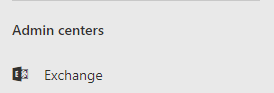
- Click Exchange:
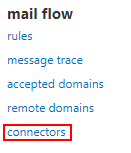
- Click connectors under mail flow:
- Click the add button:

- In the new window set from to Partner organization and To to Office 365:

- Click Next:
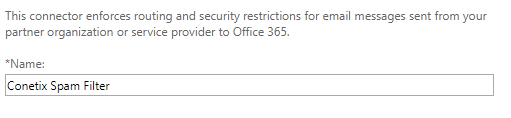
- Name the connector “Conetix Spam Filter“:
- Enter a description for the connector:
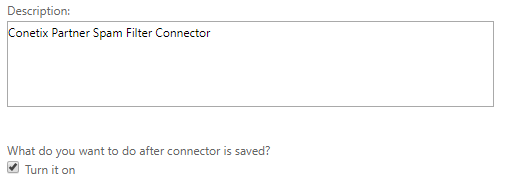
- Click Next:
- Select Use the sender’s IP address:
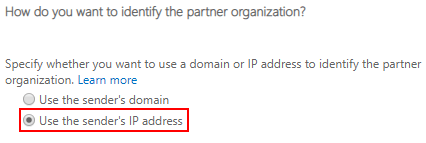
- Click Next:
- Click the add button:
- Add the IP range: 121.52.199.16/28:
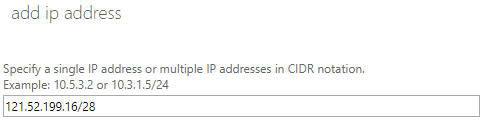
- Click OK:

- Click Next
- Confirm Reject email messages if they aren’t sent over TLS is ticked:
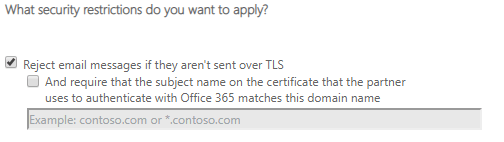
- Review your settings and Click Save:

- Your connector should resemble the following:
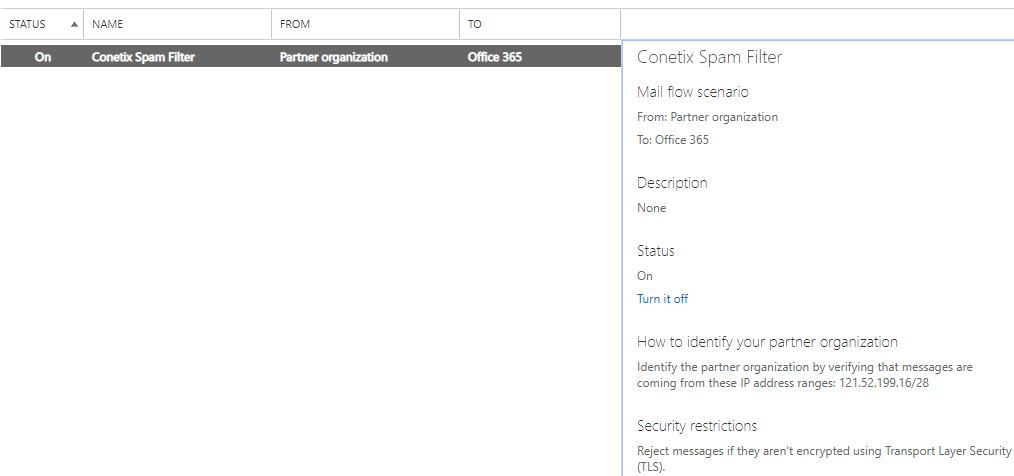
- Email will now reliably flow to your inboxes.
If you are not sure how to make these changes, please give our friendly support team a call.